
RIOT 2026.11 — crop, rotate, and new resampling filters
The crop frame on compare. Drag an edge to resize it, or drag inside it to move the area that will be saved.
RIOT 2026.11 lets you shape the picture before it is encoded. Rotate it, mirror it, and crop it — then drag the frame on the compare view until the area you save is exactly the one you want. The settings column got the same attention: each operation is a panel, and a switch turns that step on or off while the panel stays open.
Rotate and mirror
Operations → Rotate & Flip turns the image before encode. Rotate is 90° counter-clockwise, 180°, or 90° clockwise, and clicking the selected angle again clears it. Flip is separate: Horizontal mirrors left to right, Vertical mirrors top to bottom, and both can be on together. Compare applies the same turn to both curtains, so the comparison stays about compression. The size badge shows the pixels after the turn.
Crop
Centered keeps the largest area of a chosen aspect ratio in the middle. The presets are Square (1:1), 5:4, 4:3, 7:5, 3:2, 16:10, 16:9, 2:1, and 21:9, plus a custom width and height. Orientation can follow each file — a landscape photo stays landscape, a portrait photo stays portrait — or you can force one or the other. Portrait swaps the preset, so 16:9 is cut as 9:16.
Coordinates is a rectangle in pixels from the top-left corner of the image after rotate and flip. Width or height set to Auto runs to that edge.
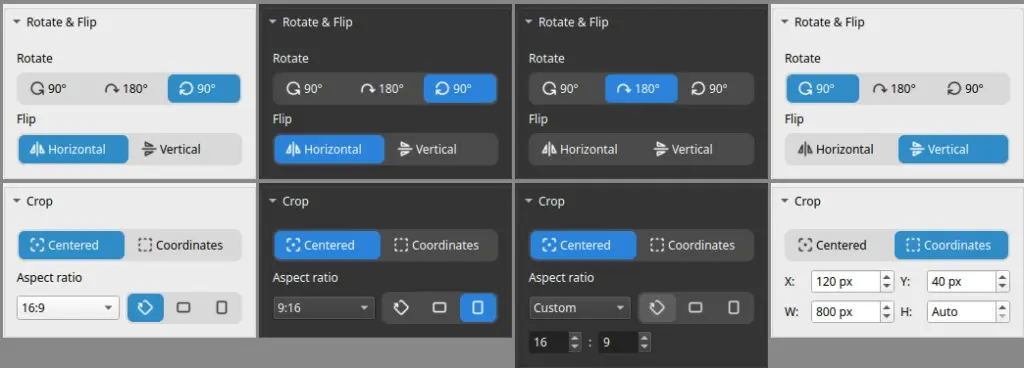
With Crop on, compare keeps the whole image and paints a frame over it. Outside the frame the picture is darkened. Drag a corner or an edge to resize, drag inside the frame to move it, and hold Shift to keep the proportions. Dragging a centered crop switches the panel to Coordinates, and the X, Y, W, and H fields follow the frame as it moves. Crop runs after rotate and flip and before resize. When Resize is on as well, the file that will be saved is drawn inside the frame. The clip at the top of this page shows that frame being dragged.
Resampling filters
Resize already offered Nearest, Cubic (Catmull-Rom), Mitchell, and Lanczos3. This release adds Bilinear, Magic Kernel Sharp 2013, and Magic Kernel Sharp 2021. Bilinear is the soft, fast blend. The two Magic Kernel Sharp filters are the sharper photographic family: 2013 with more punch along an edge, 2021 tuned so a flat area stays the colour it already was. Each filter has a tooltip. The resampling filters guide shows the same scenes through all seven. When you enlarge with Mitchell, Lanczos3, or either Magic Kernel, RIOT uses the Cubic curve.
Output names
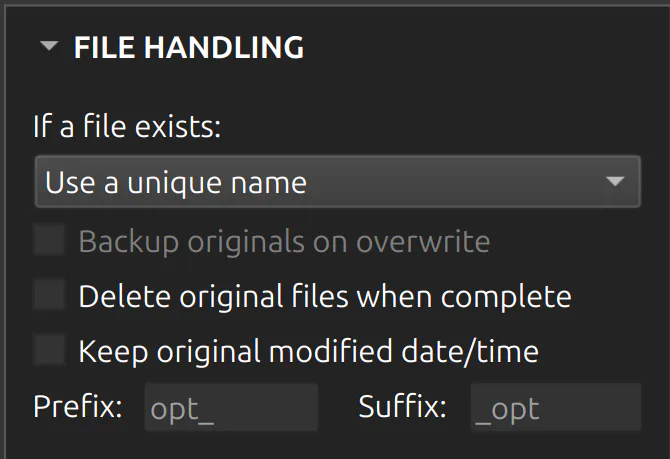
File handling now has Prefix and Suffix. They wrap the file name, and the output format still owns the extension. photo.jpg with prefix opt_ and suffix _opt is written as opt_photo_opt.jpg. Unique names and backups keep that text. The fields are saved with Last Used.
The window, and Original folder
The main window remembers its position, its size, and whether it was maximized. A saved rectangle that no longer fits on a connected screen opens at the default size, on the screen. The destination choice is remembered on its own: Original folder, which writes each file next to its source, or a custom folder.
Reload when the file changes
While compare is open, RIOT watches the source. If another program replaces that file, the curtains reload, and a note says the file was changed externally and the image was reloaded.
Languages
English, Spanish, and Romanian were already in the app. 2026.11 adds German, French, Hindi, Italian, Polish, Portuguese for Brazil and for Portugal, Russian, and Simplified Chinese. Thanks to 大眼仔~旭 for help with the Chinese translation, and to bovirus for the Italian. You can switch language in Settings while the app is running. On a fresh install, the Windows installer follows the display language.
Smaller Qt on macOS and Windows
Compared with 2026.10. The percent is how much smaller the download is.
| Package | Package size | Disk after install | Reduction |
|---|---|---|---|
| macOS (Apple Silicon) | 48.3 → 37.1 MB | 141 → 115 MB | 23% |
| Windows installer | 38.5 → 25.2 MB | 162 → 106 MB | 35% |
| Windows portable | 51.0 → 33.5 MB | 155 → 106 MB | 34% |
| Windows (Store) | 55.0 → 35.8 MB | 155 → 106 MB | 35% |
Panels
The settings column was tightened for this release: segmented buttons, panel cards, and the spacing around them. Thanks to Oldřich Žaluda for some of the UI design improvements.
Resize, Rotate & Flip, Crop, and Quantization are panels you add from the Operations menu. Each one opens with a small switch beside its title. The switch is how you include that step in the encode. Turn it on, and RIOT applies it. Turn it off, and the panel stays open with the crop, the size, or the angle you already set, while this picture is saved without that step. If you do not want the panel there at all, the remove button closes it and switches the operation off. Last Used brings those panels back next time, and remembers which switches were on.
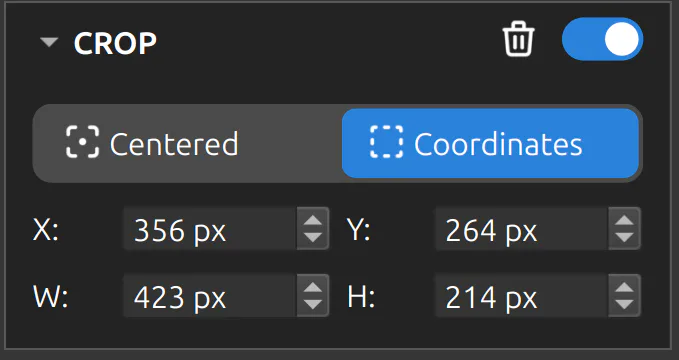
On the dark theme the panels and the controls on them were nearly the same colour, so a text box was easy to miss. Fields, dropdowns, checkboxes, and radio buttons are a shade lighter than the card now, and easier to pick out.
Columns
The columns in the file list can be widened and narrowed by hand. Point at the line between two headings and it thickens, then drag. Name keeps the room that is left, and grows when you make the window wider. Size, Status, Output size, and Saved stay at the width you gave them.
Those widths last while RIOT is open. They are not saved yet when you quit, so the next launch opens the list at the default column sizes.

While comparing, Save is also Ctrl+S (⌘S on macOS). The dialog still opens in the source file’s folder.
Download 2026.11 from the download page. The full list is in the changelog.